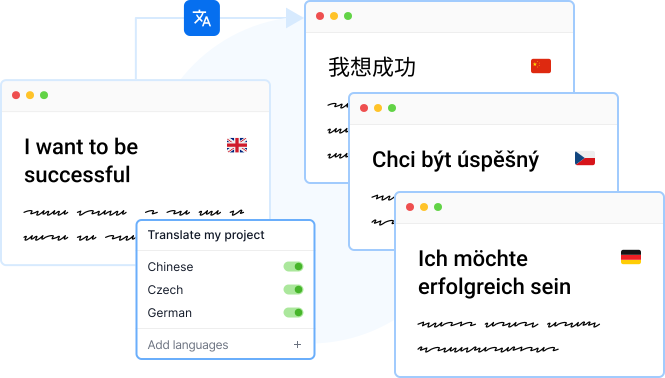
Translate your content

E-Learning Localization

Localize your eLearning courses with ease. Localazy simplifies making your courses multilingual. 🎯

How it works?
Show video
Comprehensive eLearning Content Localization

Utilize the power of Localazy’s continuous e-learning localization services. Automate processes while keeping human oversight where it matters most – quality.

Supported formats

Supported formats

We offer comprehensive support for e-learning localization across Adobe Captivate, Articulate Rise, and iSpring Suite, ensuring all your project's content localization and translation needs are met.
Read blog article

E-Learning Localization

To translate your Articulate Rise 360 course content, follow these steps:

  1. Duplicate Your Content: Duplicate the content you want to translate. Each duplicate becomes a translated version. For multiple languages, create a copy for each.

  2. Export Content as XLIFF: Open the duplicate content, navigate to Settings > Translations, and export as an XLIFF file. We recommend you include the HTML formatting. Save the file to your computer.

  3. Export Labels as XLIFF: Open the content you want to edit, then click Settings in the upper right corner of the screen, and select the Labels tab.

  4. Upload All XLIFF Files to Localazy: Sign up, create a project and upload your files to Localazy.

  5. Translate with Localazy: Add the languages you want to translate your courses into. You can now translate your course content and labels using the available tools in Localazy, invite your team or order professional translations directly inside the platform.

  6. Address any errors, ensuring the file matches the original content. Use validation checks in the translation table to spot any invalid translations.

  7. Download Translated XLIFF Files: Once your translations are finished, go to the File Management section in Localazy and click Export & Download to save the translated files on your device.

  8. Import Translated Files Back to Rise 360: Open the duplicate content you created in Step 1, go to Settings > Translations, and import the translated XLIFF file. For labels, go to the drop-down list at the top of the label editor, click Upload from XLIFF and choose the respective files.

⚠️ Note: Each course duplicate will generate a different source file, translating one course’s content and uploading it into a duplicated course will not work, because Articulate generates different key IDs for each course! Always prepare a duplicate course and download its files before translating it.

Read the full guide How to translate Articulate Rise 360 courses with Localazy on the Localazy blog.

Last updated: 20/02/2026

To translate your Adobe Captivate content, please follow these steps:

  1. Duplicate Your Content:
  • Duplicate the content you want to translate. Each duplicate becomes a translated version.
  • For multiple languages, you can create a copy for each.
  1. Export Content as XML:
  • Navigate to File > Export > To XML.
  • Save the XML file to your computer.
  1. Create a Project in Localazy and Upload XML Files to Localazy:
  • Sign up to your Localazy account.
  • Create a new project and upload your files to Localazy.
  • Fill in the necessary details such as project name, source language, and any specific settings.
  1. Translate with Localazy:
  1. Download Translated XML Files:
  • Once translations are completed, navigate to File Management section > Export & Download to save the translated files on your device.
  1. Import Translated Files Back to Adobe Captivate:
  • Open the duplicate content you created in Step 1, go to File —> Import —> From XML., and import the translated XML file.
Last updated: 11/06/2024

To translate your iSpring Suite courses, please follow these steps:

  1. Export Content as XLIFF:
  • Open your course. Then click on the Translation button and choose Export text.
  • Select the language of your source text, and click on Export.
  1. Create a Project in Localazy and Upload XLIFF Files to Localazy:
  • Sign up to your Localazy account.
  • Create a new project and upload your files to Localazy.
  • Fill in the necessary details such as project name, source language, and any specific settings.
  1. Translate with Localazy:
  1. Download Translated XLIFF Files:
  • Once translations are completed, navigate to File Management section > Export & Download to save the translated files on your device.
  1. Import Translated Files Back to iSpring Suite:
  • Return to iSpring Suite. Click on Translation, and choose Import Text.
  • Select the translated file and click Import and save your localized course as a copy.
Last updated: 11/06/2024

Localazy integrates with your stack

AndroidiOSReactVue.jsAngularJavaScriptJSONXLIFFStrapiFigma
Integrate your e-Learning projects the way that suits your workflow

It's now much easier! 👏

Integrate now
Software Development
Education

Readmio automated their localization workflow to deliver magic to every story

Using Localazy, Readmio made the localization process easier for both developers and translators, reaching families in 135 countries. The expansion from 2 to 9 languages went smoothly, and more are already in the pipeline (French, Mandarin and other Asian languages). With translations running seamlessly, the team can now focus on adding new stories instead of fixing localization issues.

Features in use
Machine translation suggestions
Review process
Contributor control
IT
Computer Software

TICGAL propelled their mobile app for GLPI with a scalable translation flow

Gapp is now available in 24 languages, with community-driven translations that continue to expand its reach. The app has been adopted by organizations such the Spanish Ministry of Science and Innovation, the University of La Rioja (UNIR) and RCS Angola, which uses Gapp to manage over 100 field technicians.

Features in use
Connected Projects
MT Pre-translate
Crowdsourced translations
Finance
Software Development

Mindnow delivered a multilingual digital banking experience for Swiss families

Clanq now supports three of the country's official languages: German, Italian, and French, plus English. With Localazy, Mindnow can keep adding new features to the app without huge translation overhauls, meeting Cornèr Bank’s high standards as well as the demands of the Swiss financial landscape.

Features in use
Intuitive interface
Localazy CLI
Machine Translation
Load More