Translating iSpring Suite courses with Localazy is straightforward once you understand how XLIFF export and import works in iSpring. This guide walks you through the complete workflow: from exporting your course text and translating it in Localazy to importing it back into iSpring Suite.
📌 Looking for a quick step reference for later? Bookmark this!
☝️ Before you start
Pick you XLIFF version
iSpring Suite exports course text as an XLIFF file.
You can choose between XLIFF 1.2 and XLIFF 2.0. We recommend the former: XLIFF 1.2 is the safer default for compatibility with most platforms, including Localazy.
Export your file as XLIFF, import into Localazy as iSpring Suite
The dedicated iSpring Suite format in Localazy preserves metadata (formatting information, internal IDs, and similar bookkeeping) that you will need to match the translated strings with the slides or elements when you re-import the file into iSpring Suite.
It's important you choose iSpring Suite format during upload, because Localazy’s standard XLIFF import is intentionally lightweight. It keeps only the translation data and strips out surrounding metadata that isn't needed for translation itself. Keep in mind that, once it's stripped on upload, it can't be reconstructed later.
🛠️ How to set it up
Step 1: Export your course text
Open your course in iSpring Suite inside PowerPoint. Go to the iSpring Suite tab in the ribbon, click Translation > Export Text. Choose your XLIFF version (1.2), specify the source language, and click Export.
No duplication is needed before exporting. You export directly from your source course — iSpring will offer you the option to create a copy at the import stage.
Text blocks containing equations, animated links with sound effects, SmartArt Office 2007 graphics, and SmartArt graphic nested blocks are excluded from the XLIFF export. iSpring will display an error message listing the affected items. You can still translate them, but it will require a few manual steps: copy these texts, add them as new keys in your Localazy project, and translate them together with your exports. After you translate everything, you can copy and paste the translated text back into your presentation.
If your course includes a quiz, open it in iSpring QuizMaker and follow the same export steps from the Translation tab there.
Step 2: Upload to Localazy
- Sign up or log in to Localazy.
- Create a new project.
- Upload the XLIFF file exported from iSpring Suite.
- Add your target language.
Localazy reads the file, pulls out all translatable strings, and sets them up for translation while keeping the iSpring XLIFF structure intact.

Step 3: Add context and translate
Before translating, take a few minutes to set up your project context. It pays off especially for training and eLearning content, where consistent terminology matters.
- Style guide — sets the tone and feel for translators and Localazy AI.
- Glossary — keeps key terms consistent across all languages and course modules.
With context in place, you are ready to start translating using Localazy features.
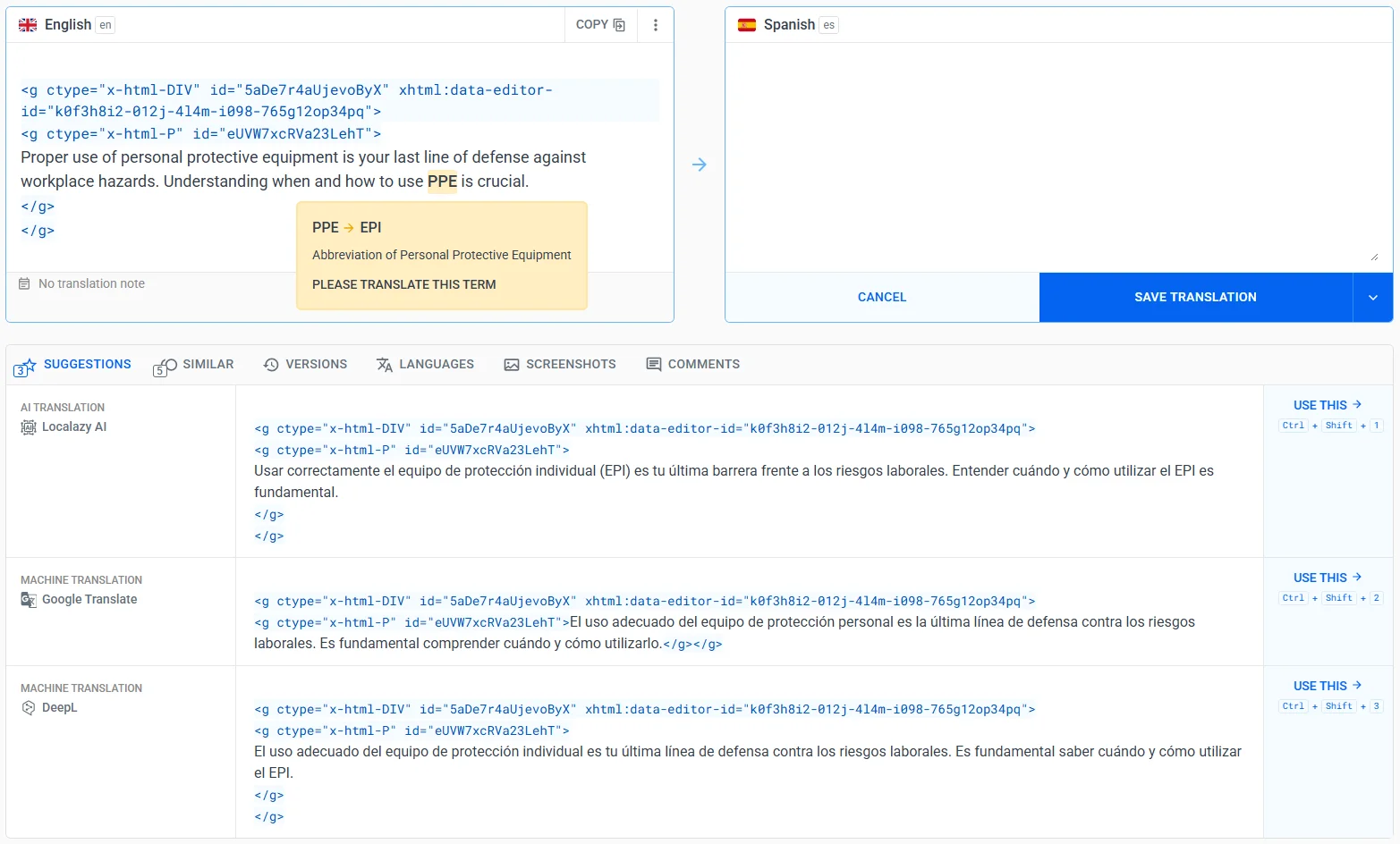
<A>, <B>, etc.) while you translate, then restores them to their original form automatically when you save, keeping the interface focused on the actual text instead of XML markup.You can translate the strings on your own, invite your team to Localazy, or make use of other options:
- Localazy AI for context-aware automated translations.
- Human translation services ordered directly on the platform.
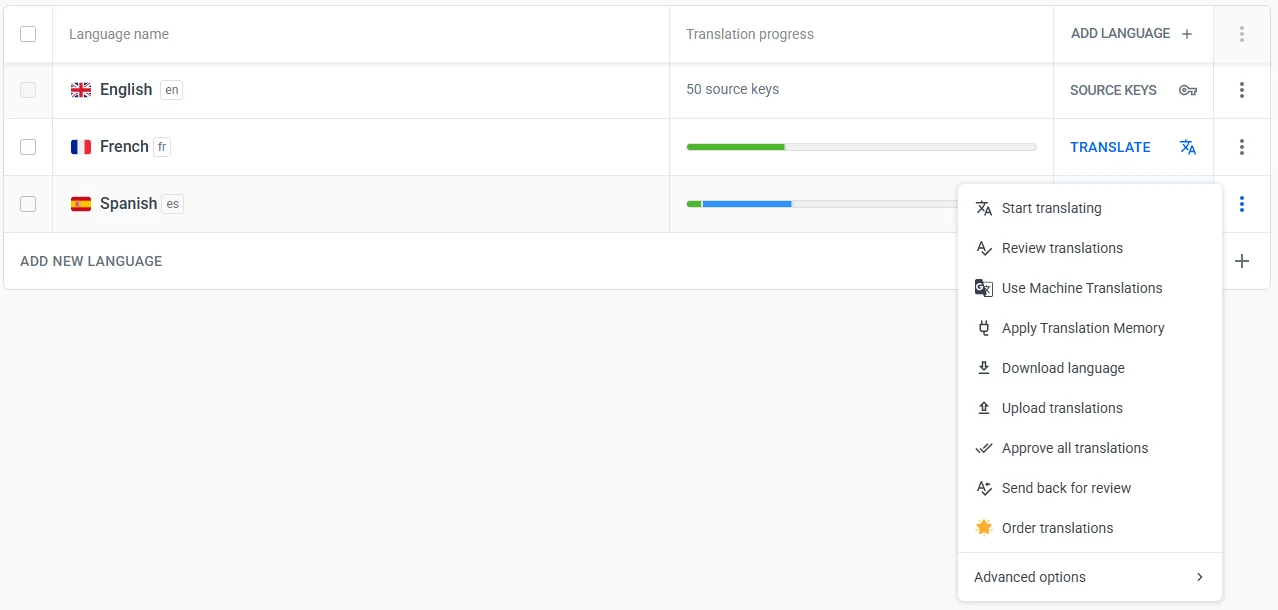
- Translation Memory to carry approved translations from earlier iSpring projects and avoid translating the same content twice.
iSpring Suite has its own AI translation built directly into the authoring tool. It can translate a whole course into more than 70 languages, which is really useful for a fast first pass. But it comes with clear limits:
- The standard plan caps you at five translations a month (unlimited requires their AI-focused plan).
- It processes up to 350,000 characters at a time.
- iSpring itself recommends checking the output for accuracy before you ship it.
Beyond those limits, it translates each course in isolation, with no shared style guide, glossary, or translation memory carrying over between projects.
Routing the same content through Localazy (whether you translate manually, order human translation, or use Localazy AI) means the consistency tools above apply automatically.
Step 4: Check validity before download
Once translations are complete, Localazy automatically validates the XLIFF structure. Remember to fix any flagged validation issues before downloading.
Download only after all translations clear the XLIFF validity checks. iSpring Suite will not accept files with structural errors. Resolving them already in Localazy saves time and prevents failed imports.
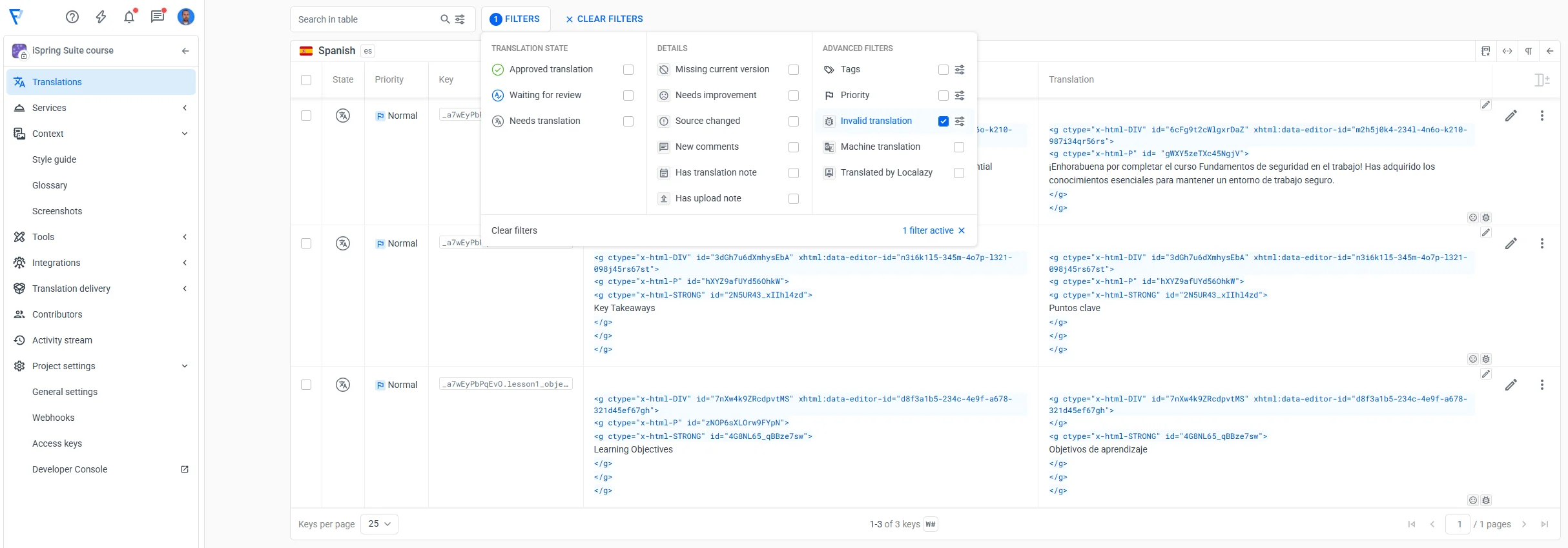
To review validity:
- Go to the language table view in your Localazy project.
- Use the filters and select Invalid translation to display strings with detected issues.
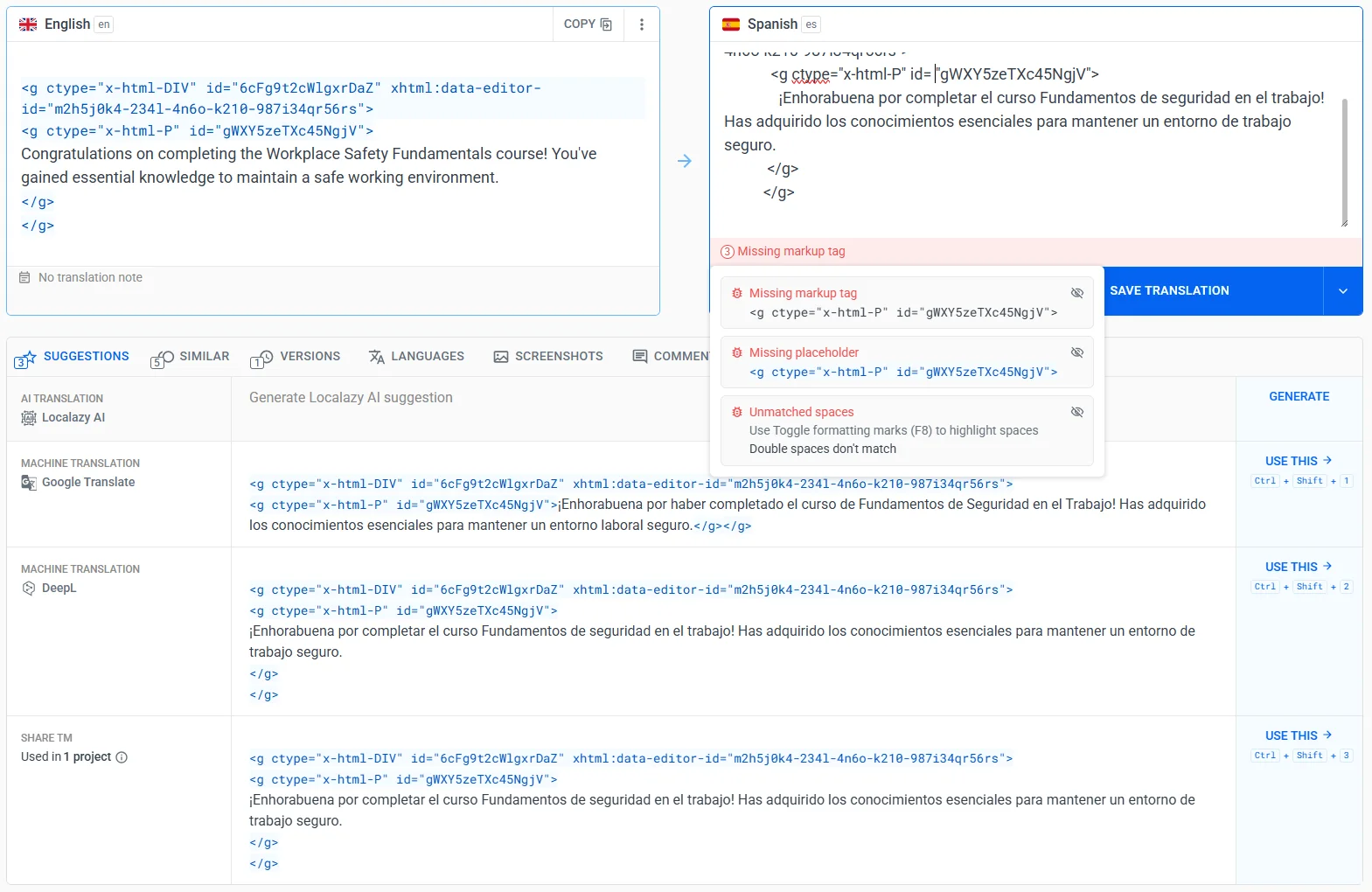
- Fix any flagged problems (most commonly, missing or broken XML tags).
- Confirm all translations are complete.
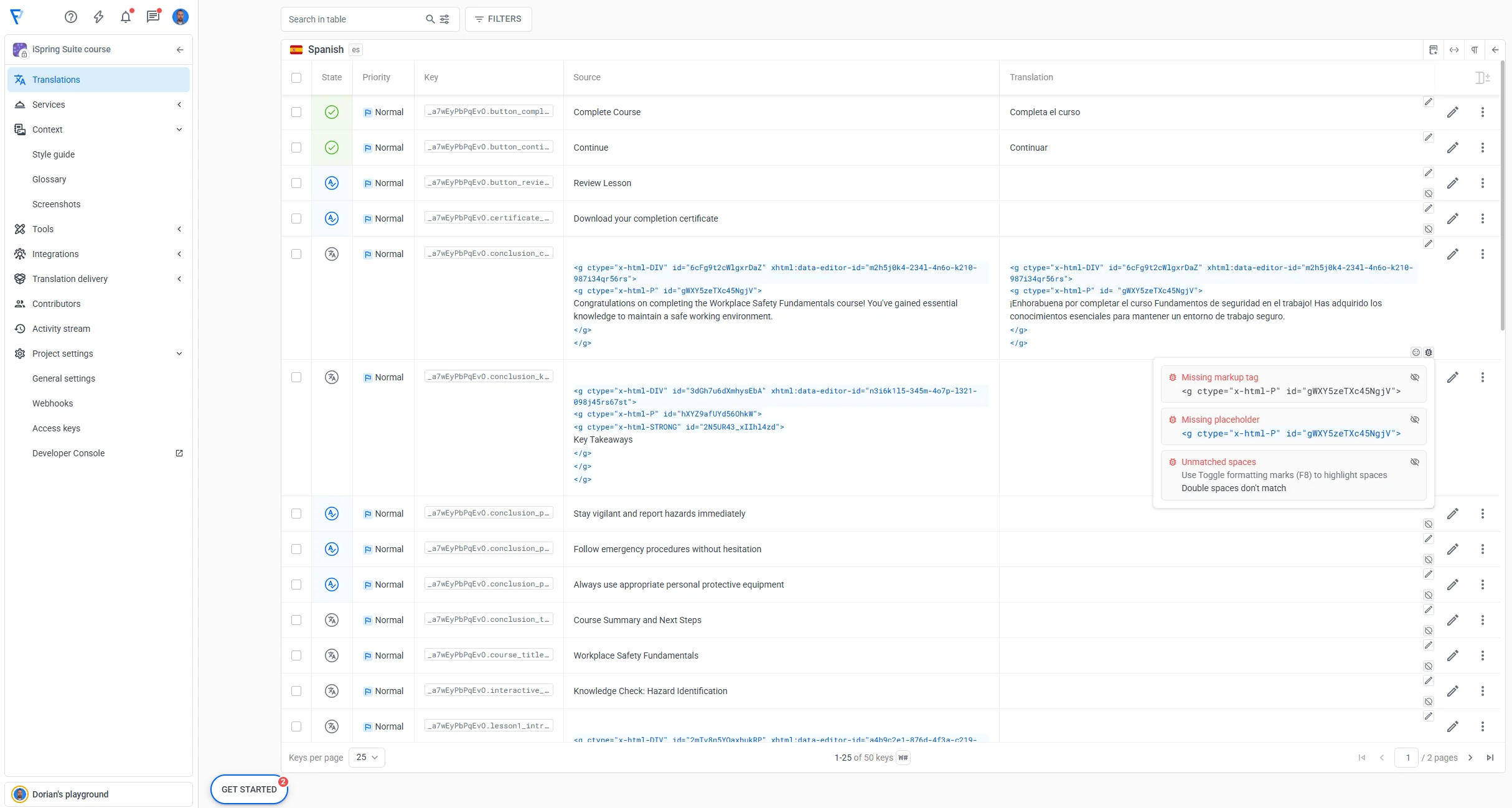
The most frequent problem with translated iSpring XLIFF files involves broken or mismatched XML tags. iSpring exports can contain inline formatting elements representing bold, italic, hyperlinks, or other text styles. These tags must remain intact through translation.
Example of a typical iSpring XLIFF structure:
<trans-unit datatype="x-is-rich-text-content" id="k3m8pq2vd7xr.title.content" ispring:res-id="k3m8pq2vd7xr.title.db">
	<source xml:space="preserve">
		<g ctype="x-is-par" id="g1" ispring:start-data="data1">
		<g ctype="x-is-span" id="span1" ispring:start-data="data2">Step 3: </g>
		<g ctype="x-is-span" id="span2" ispring:start-data="data3">The setup</g>
		</g>
	</source>
	<target xml:space="preserve">
		<g ctype="x-is-par" id="g1" ispring:start-data="data1">
		<g ctype="x-is-span" id="span1" ispring:start-data="data2">Krok 3: </g>
		<g ctype="x-is-span" id="span2" ispring:start-data="data3">Nastavení</g>
		</g>
    </target>
</trans-unit>
Frequent issues include:
- Deleting or moving inline tags during translation.
- Changing tag attributes or IDs.
- Breaking opening/closing tag pairs.
Localazy's built-in validation catches these structural errors before they cause an import error.
Step 5: Download translated files
Once translations are complete and validated:
- Open File Management in Localazy.
- Select Export & Download.
- Save the translated XLIFF file to your computer.
Step 6: Import back into iSpring Suite
Lastly, open your source course and import the translated file.
- In PowerPoint, go to the iSpring Suite tab in the ribbon.
- Click Translation and select Import Text.
- iSpring will warn you that the current course text will be replaced with the translated version. Click Create a copy. It generates a new file with the translated content; your original source course stays untouched.
- Select the translated XLIFF file and click Import.
iSpring Suite will populate the course with the translated content. The original layout, formatting, and slide structure will remain unchanged.
If the import fails, go back to Localazy, fix any outstanding validation errors, download a fresh copy, and repeat the import. If your course includes a quiz, follow the same import steps inside iSpring QuizMaker — go to Translation > Import Text and select the translated quiz XLIFF file.
Text that remains in the source language after import was most likely not captured by the XLIFF export. Equations, certain animated elements, and SmartArt graphics are not exported automatically. Add translations to these elements manually inside iSpring Suite after the import is complete.
🔄 Common workflows
One-time course translation
Follow Steps 1–6 once per language. Keep exported XLIFF files as backups in case you need to re-import or compare versions.
Ongoing course updates
After making changes to your course, export a fresh XLIFF and bring it into Localazy. Strings that haven't changed will pull from Translation Memory automatically. Only new or modified strings require fresh translation work.
Multi-course programs
Use Connected Projects to link multiple iSpring courses in Localazy. Shared strings (such as navigation labels, button text, or recurring instructional phrases) only need to be translated once and are available as Translation Memory suggestions across every connected project.
🖇️ Quick tips
When exporting from iSpring, what file version should I use?
Choose XLIFF 1.2 if you are unsure. It's the more widely supported format.
Which import format should I choose in Localazy?
Choose the iSpring Suite format, not the standard XLIFF. The standard strips the metadata you'll need to match translations back to your slides, and that can't be recovered afterward.
How can I duplicate translated content?
When importing translated content, click Create a copy in the import dialog — iSpring handles duplication automatically at this stage.
My course contains quizzes. How do I export them?
Export quizzes separately via iSpring QuizMaker if your course includes assessment content.
How do I handle validation errors?
Resolve them before exporting from Localazy, since iSpring Suite will reject files that are structurally invalid.
Should I test this with only one language first?
Yes. Run a single-language import first to confirm the workflow before adding more target languages.
💬 Need help?
If you run into upload problems, import errors, or validation failures, contact our support team.
Happy localizing! 📚💙